MacBook USB-C port defective or charging on one side only? What helps now
In short: Test with the original charger, a second cable and each port in turn – but do not plug the accessory that was connected when the port failed into the next port. If a port still does not respond, the MacBook charges on one side only or the charging port wobbles, the fault is inside the device: in our workshop most often the electronics behind the port on the logic board, then the connector itself or something in the top case. The fault analysis is free – in person in Hamburg-Altona or by mail from anywhere in Germany via emonis.com, with free DHL shipping both ways.
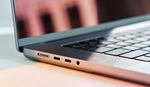
A USB-C port on your MacBook no longer responds, the device only charges on one side, the charging port wobbles, or your monitor and dock are not recognized? Here is what you can check yourself first – sorted by what you have in front of you, along the fault patterns customers describe to us at intake. For each case we tell you what was usually defective in the end. This applies to every MacBook with USB-C ports – MacBook Pro from 2016, MacBook Air from 2018 and the 12-inch MacBook from 2015, from the Intel models to the current Apple chips, with and without MagSafe 3. Depending on the model the ports are called USB-C, Thunderbolt 3, Thunderbolt/USB 4, Thunderbolt 4 or Thunderbolt 5; the plug is the same on all of them. Two distinctions first: if the MacBook charges on no port at all although charger and cable work on another device, that is a charging problem – see the guide MacBook won't charge. If the device stays completely dead, it is a start-up problem: MacBook won't start or won't turn on.
Liquid involved? If something has run into the port or the device, different rules apply first – stop charging, plug nothing in, shut down and get it cleaned quickly, because wet contacts on the connector and the board keep corroding as long as there is voltage on them: the first steps are in MacBook got wet? What to do now, the mail-in service from anywhere in Germany on the water damage repair page on emonis.
Which case is yours?
The typical fault patterns from intake – find the case that matches your device.
USB-C port not working – one port on the MacBook is defective
Typical: the port recognizes nothing, no device is detected, one USB port on the MacBook is dead – whatever you plug in, nothing happens on this port while the rest of the MacBook runs. Go through step 1 first: original charger, second cable, then the same accessory on a different port – but only if the failure did not happen exactly when this accessory was plugged in. If everything works on the other ports, the fault is inside the device. From the outside you can rarely tell whether the connector or the electronics behind it are affected. In our workshop, devices with port problems most often needed the logic board, then the connector or something in the top case – and sometimes it was just a cable or a charger.
MacBook charges on one port only or on one side only
Typical: does not charge on one port, charges on one side only – the most common description on this topic: the MacBook charges on one port, nothing happens on the other, or the charger has to go on a particular side. Every USB-C port on a MacBook can charge, and the Mac only ever charges from one source – the strongest; more on that, including which models charge via MagSafe 3 rather than USB-C only, in the guide MacBook won't charge – what helps now. So try each port individually with the original charger and the supplied cable: if it charges on one and not on the other, the fault is inside the device. If it charges on no port at all, that is a charging problem – the same guide covers it. In our workshop, just under two in three of these devices had a logic board repair on the quote – whether controller or charging circuit only shows when we measure – less often something in the top case or the connector alone.
MacBook charging port loose or the plug wobbles
Typical: the port wobbles, loose contact at the charging port, the plug sits loosely or has broken off: the cable only holds in one particular position, charging drops out at the slightest nudge, or part of the plug is stuck in the port. First check whether it is really the port that wobbles or just the cable: if the MacBook charges cleanly with a different cable, it was the cable – and a cable that only charges when wiggled belongs in the bin. Shine a light into the port (step 3): dust and lint may be blown out with compressed air, as Apple suggests; leave a broken-off piece of plug or bent contacts where they are – we remove those in the workshop without damaging the connector further. In our workshop it was about equally often the connector or something in the top case, less often the logic board.
MacBook does not recognize monitor, docking station or USB stick
Typical: external monitor or dock is not recognized: the stick does not show up in the Finder, the dock stays silent, the external monitor reports no signal. Connect the accessory directly to a port on the MacBook instead of through a hub or dock, and try a different cable. For a monitor, "Detect Displays" often helps: Apple menu → System Settings → Displays, then hold the Option (⌥) key until the button appears. Whether the Mac sees the device at all is shown by the System Report (step 2). If the monitor is recognized but stays dark, flickers or shows stripes, that is a display topic: MacBook screen flickering or showing stripes. For this picture there was no consistent pattern in the workshop – from the connector to the top case to the SSD, everything was in there; here the analysis decides.
MacBook shuts off when a monitor or docking station is connected
Typical: the MacBook went off when something was plugged in – rare, but the most unpleasant case: the moment a monitor, dock or charger is connected, the screen goes black and the MacBook cannot be switched on again. The cause can sit in the connected accessory: chargers, docks and monitors that do not follow the USB-C Power Delivery specification do not always supply clean voltage – a voltage spike hits the electronics behind the port first. What matters now: unplug everything, do not plug the accessory concerned into a second port, then hold the power button for about ten seconds and switch on again. If the device stays off, it is a start-up problem – the next steps are in the guide MacBook won't start or won't turn on. In the workshop such a device goes on the bench before any more current reaches the board.
Check it yourself: four steps before you buy new accessories
The order is deliberate – from quick to thorough. Your data is not at risk in any of these steps.
Step 1: Cross-test charger, cable and port
Take the original charger and the supplied cable, then a second cable – some USB-C cables are charge-only or low-power. Try all the ports one after the other; unplug any dock or monitor with its own power supply for the test. If the MacBook only charges when you wiggle the cable, stop using that cable. Mark a port that has failed until it is repaired – so you do not use it by accident. And the one rule that prevents consequential damage: if a port failed exactly when a particular device was plugged in, do not plug that device into the next port.
Step 2: Connect directly instead of via dock or hub – and check the System Report
Hubs, docks and adapters are the first source of error when something is not recognized. Connect the stick, drive or monitor directly to a port on the MacBook, with a second cable. Whether the Mac sees the device is shown in the System Report: hold the Option (⌥) key and choose "System Information" from the Apple menu – or Apple menu → System Settings → General → About → "System Report" – then look under "Hardware" at USB or Thunderbolt on the left. If the device shows up on one port and not on the other, the port is the problem, not the device. For a monitor, additionally open System Settings → Displays and hold the Option key until "Detect Displays" appears; a Thunderbolt or USB-C adapter for the monitor must support DisplayPort Alt Mode, Thunderbolt 3 or Thunderbolt 4.
Step 3: Look into the port – dry only
Shut the MacBook down and disconnect the charger. Shine a light into the port: dust, lint, a broken-off piece of plug or bent contacts? Dust and lint may be blown out with compressed air, as Apple suggests; from the outside, clean dry only with a soft, lint-free cloth – no cleaning sprays, no liquid into the opening, nothing metallic inside. If something is stuck in the port or contacts are bent, leave it: we remove that in the workshop without damaging the connector further.
Step 4: Restart
Apple menu → Restart; if the Mac hangs, hold the power button for about ten seconds, then switch on again. Sleep and wake – close the lid for a few seconds and open it again – sometimes brings back an unrecognized monitor, too. On Intel MacBooks, Apple additionally recommends an SMC reset for USB-C charging problems – according to Apple, the SMC also controls the power supply of the USB port; the key sequence is in the guide MacBook won't charge (SMC reset section). On Macs with an Apple chip, shutting down and switching on again is enough – the SMC resets itself in the process. But no reset changes anything about a defective connector or a burnt-out controller.
What is really defective behind a USB-C fault – workshop experience
MacBook USB-C repair: connector, controller or logic board – and what it costs
A defective USB-C port is rarely just a mechanical problem. The connector is one thing; behind it, on the logic board, sits the USB-C controller that negotiates with every connected device how much power flows and which data is transferred. Depending on the model, two ports share parts of these electronics on the board – damage can then affect both ports although the connectors are intact. What ended up on the quote for devices with a port problem, and what that usually costs, is shown in the overview – from our workshop with 20,000+ repairs since 2015, walk-ins in Hamburg and mail-ins combined. In the free analysis we measure on the board whether the connector, the controller or the charging circuit is affected; from the outside that cannot be told apart.
| Finding | Usual price |
|---|---|
| Logic board: charging circuit, power management, USB-C controller | €200–400 |
| Logic board: simple components (capacitors, small ICs) | €100–200 |
| USB-C/Thunderbolt connector replacement | from €120 |
| Cleaning after liquid – connector, top case, board (without board repair) | from €140, often under €200 |
| Trackpad or keyboard, if also affected | trackpad from €160, keyboard from €180 |
| Firmware / software | from €100 |
| Only cable or charger defective | replacement part, after analysis |
All prices in euros incl. VAT; analysis and shipping are free.
How it breaks down: half of these devices had a logic board repair on the quote, about one in three charger, cable or connector, almost as often keyboard, trackpad or top case, about one in five a cleaning of board or top case – often several things come together.
Intel or Apple silicon makes a difference. On Intel MacBooks it was the logic board about half the time and charger, cable or connector one time in four. On MacBooks with M1 to M5 chips, the quote mostly named the logic board, less often a cleaning, the top case or the connector. So if a port on an Apple silicon MacBook does not respond although cable and charger work elsewhere, the board is the first suspect.
Repair instead of replacement – and what that means for your data: The usual approach to damaged electronics behind the port is to swap the entire logic board. We repair the board at component level: the defective component – controller, charging circuit or connector – is replaced individually, the board stays in the device – and with it the SSD, which is soldered to the logic board in all MacBooks with an Apple chip and in Intel models with the T2 chip (MacBook Pro and Air 2018–2020), complete with system and data. Why that is usually much cheaper: MacBook logic board defect – repair instead of replacement. All prices by type of repair: What does a MacBook repair cost?; how long a repair takes with us: How long does a MacBook repair take?. For the mail-in service from anywhere in Germany, prices and process are on emonis: MacBook logic board repair.
Three cases from the past months
- MacBook Air (M1, 2020) – USB-C connector replacement (mailed in from Ahrensburg): The Air arrived with the request to have both USB-C ports replaced; it started normally. The quote listed the USB-C connector replacement. €120.
- MacBook Pro 16" (2019, Intel) – logic board repair, data preserved (mailed in from Berlin): The MacBook only charged while switched off; running, it did not recognize the charger. The quote listed the repair of the logic board, with the note that the data would be preserved. €320.
- MacBook Air 13" (M3, 2024) – top case repair with keyboard replacement, USB-C connector replacement, logic board cleaning (walk-in from Harburg): After liquid contact in December, the lower USB-C port no longer responded and the keyboard was sticky. The quote listed the top case repair with a new keyboard, the USB-C connector replacement and the cleaning of the logic board. €420.
All prices in euros incl. VAT.
Special cases
USB-C controller defective: the signs
The signs are varied and easy to confuse: one or more ports do not respond although cable and charger work on another device; the MacBook only charges on one side; connected devices keep disconnecting and reconnecting; external drives or monitors are not recognized on one or on all ports; or the device fails exactly when a monitor, dock or charger is plugged in. From the outside a defective controller cannot be told from a defective connector – only measuring on the board shows whether the connector, the controller or the charging circuit is affected. A port that only charges some of the time therefore belongs in the workshop soon, before the connector damage turns into logic board damage.
What kills ports – and how to prevent it
Three causes we see again and again: chargers, docks and monitors that do not follow the USB-C Power Delivery specification, or damaged cables, do not always supply clean voltage – a voltage spike hits the electronics behind the port first. Liquid or moisture in the port – see the red box above. Hard tugging on the cable or a drop damages the connector mechanically. Prevention is simple: the original charger or a certified charger with at least the wattage of the supplied one; caution with no-name hubs and adapters; keep the ports clean and dry; pull on the plug, not the cable, when connecting and disconnecting; test new accessories on a less important device first.
If nothing has helped
Then there is most likely a hardware defect – in our workshop most often on the logic board, then the connector or something in the top case. The analysis is free, even if you decide against the repair afterwards: you get a fixed price and know what is defective. Drop it off in person in Hamburg-Altona (no appointment needed), or mail it in free of charge via DHL from anywhere else in Germany. We give a 12-month warranty on every repair. All prices by type of repair: What does a MacBook repair cost?
Frequently Asked Questions
Can I still use my MacBook with a defective USB-C port?
If only one port is affected and the others work, yes – for the time being. Mark the failed port until it is repaired so you do not use it by accident, and do not plug the accessory that was connected when the port failed into a second port: depending on the model, two ports share parts of the electronics on the board, and damage can then affect both ports. A port that only charges some of the time, or a wobbling charging port, belongs in the workshop soon, before the connector damage turns into logic board damage.
How much does it cost to repair the charging port on a MacBook?
The free analysis settles that first: you receive a fixed quote and then decide – deciding against the repair costs nothing. As a guide, the price tiers of our overview: replacement of a defective USB-C/Thunderbolt connector from €120, a repair of the charging circuit or USB-C controller on the logic board €200–400, simple components on the board €100–200, cleaning after liquid from €140, often under €200 – each incl. VAT, analysis and shipping free. The fixed price for your device is set by the quote after the analysis. If only the cable or the charger is defective, you pay only for the replacement part. All prices by type of repair: What does a MacBook repair cost?
Why does my MacBook only charge on one port?
Every USB-C port on a MacBook can charge, and the Mac only ever charges from one source – the strongest. So try each port individually with the original charger and the supplied cable: if it charges on one and not on the other, the fault is inside the device. In our workshop, just under two in three of these devices had a logic board repair on the quote – whether controller or charging circuit only shows when we measure – less often something in the top case or the connector alone. If it charges on no port at all, that is a charging problem: MacBook won't charge – what helps now.
What to do if the charging port on the MacBook wobbles?
First check whether it is really the port that wobbles or just the cable: if the MacBook charges cleanly with a different cable, it was the cable – and a cable that only charges when wiggled belongs in the bin. Shine a light into the port: dust and lint may be blown out with compressed air, as Apple suggests; leave a broken-off piece of plug or bent contacts where they are, clean dry only and put nothing metallic inside – we remove those in the workshop. In our workshop it was about equally often the connector or something in the top case, less often the logic board. Replacing a defective USB-C/Thunderbolt connector costs from €120; the fixed price is set by the quote after the free analysis.
Why does my MacBook not recognize the monitor or the docking station?
Hubs, docks and adapters are the first source of error: connect the accessory directly to a port on the MacBook, with a second cable. For a monitor, "Detect Displays" often helps – Apple menu → System Settings → Displays, then hold the Option (⌥) key until the button appears; a Thunderbolt or USB-C adapter for the monitor must support DisplayPort Alt Mode, Thunderbolt 3 or Thunderbolt 4. Whether the Mac sees the device at all is shown by the System Report (hold the Option key and choose "System Information" from the Apple menu): if it shows up on one port and not on the other, the port is the problem. If the monitor is recognized but stays dark or shows stripes, that is a display topic: MacBook screen flickering or showing stripes.
Why does my MacBook shut off when I connect a monitor or docking station?
Chargers, docks and monitors that do not follow the USB-C Power Delivery specification, or damaged cables, do not always supply clean voltage – a voltage spike hits the electronics behind the port first, the USB-C controller on the logic board. What matters now: unplug everything, do not plug the accessory concerned into a second port, then hold the power button for about ten seconds and switch on again. If the device stays off, it is a start-up problem: MacBook won't start or won't turn on. In our workshop such a device goes on the bench before any more current reaches the board.
How do I know whether the USB-C controller is defective?
One or more ports do not respond although cable and charger work on another device; the MacBook only charges on one side; connected devices keep disconnecting and reconnecting; external drives or monitors are not recognized on one or on all ports; or the device fails exactly when a monitor, dock or charger is plugged in. From the outside a defective controller cannot be told from a defective connector – only measuring on the board shows whether the connector, the controller or the charging circuit is affected. In our workshop, devices with port problems most often needed the logic board, then the connector or something in the top case.
Why is the second port dead too?
First, the obvious cause: the accessory that damaged the first port – a charger or dock with a voltage spike, for example – can damage the second one too when you move it over. Then there is the technology: depending on the model, two ports share parts of the electronics on the board, and damage can then affect both ports although the connectors themselves are intact. Hence the rule: never plug the accessory that was connected when the first port failed into the next port. We repair the board at component level – the defective component is replaced, the board stays in the device, and with it the SSD complete with system and data.
Can a cheap charger or dock damage the USB-C port?
Yes. Chargers, docks and monitors that do not follow the USB-C Power Delivery specification, or damaged cables, do not always supply clean voltage; a voltage spike hits the electronics behind the port first – the USB-C controller and the charging circuit on the logic board. If you have problems with a third-party charger, go back to the supplied one – more on that in the guide MacBook won't charge. If the MacBook only charges when you wiggle the cable, stop using that cable – and test new accessories on a less important device first.