MacBook won't charge: 6 solutions for charging problems
It's frustrating when your MacBook suddenly stops charging even though it's plugged in. You usually only notice when the battery is empty and you find yourself without power.
In this guide we show you 6 effective solutions that will let you fix, or at least isolate, the charging problem on your MacBook in most cases.
Quick overview: the 6 solutions
If your MacBook won't charge even though it's plugged in, there's a systematic way to track down the cause:
- Check power adapter and cable – verify compatibility and condition
- Disable optimized charging – lift the temporary block
- System restart – resolve software conflicts
- Reset power management – SMC reset or Apple Silicon procedure
- Check battery apps – disable third-party charging tools
- Hardware diagnosis – rule out a logic-board defect
If these steps don't solve it, it is usually a hardware fault. The diagnosis is free – in Hamburg-Altona or by mail-in from anywhere in Germany via emonis.com.
Drawing the line: If the MacBook stays completely dead – no picture, no sound, no reaction, even after a night on the charger – that's not a charging problem but a startup problem. There's a dedicated guide for that: MacBook won't start or won't turn on.
How do I know if my MacBook is actually charging?
When your MacBook is running, the battery icon in the menu bar (top right) shows a lightning bolt while it's charging. If the battery icon only shows a plug, that means the MacBook is connected to a power adapter but not charging.
Click the battery icon to see more details, such as which power source is currently being used (battery or adapter).

The top 6 reasons your MacBook isn't charging
Reason 1: Power adapter or cable incompatible or defective
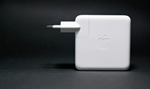
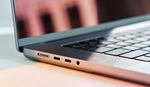
Make sure the adapter supports USB-C Power Delivery and delivers at least as many watts as the adapter that came with your MacBook – that is Apple's rule of thumb. A weaker adapter may run the Mac but not charge it, especially under load, and some USB-C cables carry data only and don't charge at all. With USB-C every port can charge – try them all, and test with the adapter alone rather than through a hub or monitor.
Also check whether the connectors on the adapter and cable are clean and look for any damage or breaks. Always unplug the adapter from the wall before visually inspecting it, to avoid shocks. If the original cable or adapter is damaged, replace it with a new genuine Apple part.

Reason 2: Optimized Battery Charging is active
Since macOS Big Sur 11.0 there's a feature called "Optimized Battery Charging". It's designed to extend battery lifespan by intelligently managing the charging cycle and slowing the chemical aging of the battery.
The side effect: your MacBook may stop charging at around 80% and only top up to 100% later, when macOS predicts you'll need it. So it can look like your MacBook has stopped charging for no reason.
How to temporarily disable optimized charging:
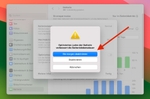
Open the Apple menu → System Settings → Battery, click the info button (ⓘ) next to "Charging" – in older macOS versions next to "Battery Health" – and turn off "Optimized Battery Charging". Macs with Apple Silicon on macOS Tahoe 26.4 or later also offer a charge limit between 80 and 100% in the same place.
Your MacBook now charges normally whenever it's plugged in. Don't leave this feature off permanently, though: in the long term it genuinely helps extend the life of your MacBook battery.
Reason 3: Something has gotten stuck
If your MacBook Pro or Air says it's plugged in but not charging, a simple restart often fixes it. Many software-side issues around the charging process can be resolved this way. Sometimes a process related to charging freezes and stops the charging procedure; these are temporary problems a restart clears up.
Follow these steps:
- Click the Apple menu → Restart.
- Wait for the Mac to boot back up.
- Check whether charging works now.
Reason 4: Reset the power management
If the problem persists after a restart, the power management itself may be the issue. The exact procedure depends on your MacBook generation.
MacBooks with Apple Silicon (M1, M2, M3, M4, M5):
On these models a restart replaces the SMC reset: according to Apple, the SMC – which controls the power management – resets automatically when the Mac restarts or is shut down and turned back on, and there is no key combination for it. If the Mac is frozen, force the restart:
- Hold the power button (or Touch ID) for 10 seconds until the MacBook switches off.
- Wait a few seconds.
- Turn the MacBook back on by pressing the power button.
Intel MacBooks with the T2 security chip (most models from 2018 onwards):
Apple's first step: shut down, hold the power button for 10 seconds, release it, wait a few seconds and turn the Mac on. If that doesn't help:
- Fully shut down the MacBook.
- Hold Control (left) + Option (left) + Shift (right) for 7 seconds. The MacBook may switch on during this.
- Keep those keys held and additionally press the power button for another 7 seconds. The MacBook will switch off again.
- Release all keys, wait a few seconds and turn the MacBook on as normal.
Intel MacBooks without the T2 security chip (models before 2018):
- Fully shut down the MacBook.
- Hold Shift (left) + Control (left) + Option (left) together with the power button for 10 seconds.
- Release all keys.
- Turn the MacBook on as normal.
Reason 5: Battery-optimizer apps are blocking charging
Some third-party apps intervene in the charging process and can prevent the Mac from charging even though it's plugged in. Well-known examples:
- AlDente
- FruitJuice
- Energiza
Disable or completely uninstall these apps as a test. Make sure no background processes are still running; usually you just need to clear the "Launch at startup" or "Load on system start" checkbox inside the app's settings.
Other apps that hook deep into the system (antivirus, cleaners, optimizers) can also cause charging issues. Quit them as a test and restart the Mac.
For diagnosis: use tools like iStat Menus or coconutBattery to inspect charge cycles, temperature and voltage. Advanced: run
system_profiler SPPowerDataType in Terminal.Reason 6: Logic-board defect as a possible cause
The wrong adapter can also be the trigger: check wattage and certification. If none of the previous tips work and your MacBook Pro or Air still refuses to charge, you may be looking at a hardware defect. A common source is the so-called logic board.
The logic board is the main board of the Mac and controls many essential functions, including charging. If components on it are defective, the battery won't charge.
Signs of a logic-board defect include:
- MacBook still won't charge after an SMC reset
- Charging port feels loose or wobbles
- Unusual noises or smells when plugging in the charging cable
In this case, professional repair is usually the only option: the logic board needs fixing. DIY repair is rarely possible or sensible.
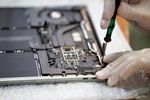
In many cases only a single component on the logic board is defective. We replace parts precisely, without unnecessary full swaps. That saves time and money.
The usual fix for a charging fault on the board is to swap the whole logic board. We repair the board at component level – and because the SSD is soldered onto the board on all Apple Silicon Macs and most Intel models from 2016 on, your system and data stay exactly where they are.
Further technical causes
Other causes include contaminated charging ports (corrosion), faulty charge-controller firmware, or a defective USB-C port. Professionals measure voltages, current draw (PPBUS) and I/O resistance.
Contact corrosion from humidity, firmware errors in the charge controller, or defective voltage regulators on the logic board can also prevent charging. Professional diagnosis with an oscilloscope and a multimeter can pinpoint these problems.
MagSafe charging issues (older MacBooks & M-series with MagSafe 3)
LED indicator meanings
- Green light: battery fully charged
- Amber light: charging, or charging paused
- Blinking amber: a charging problem – wipe connector and port dry, restart the Mac, try another cable
- No light: no power is reaching the Mac – check outlet, adapter and cable
Typical MagSafe problems
- Worn cable near the connector, the most common failure point
- Defective DC-In board inside the MacBook
- Faulty MagSafe adapter
Check battery health
View battery information
- Apple menu → System Settings → Battery shows the battery health
- For the cycle count: hold the Option key, choose Apple menu → System Information, then "Power"
- Check the "Condition" and "Cycle Count" values – Apple rates current MacBook batteries for 1,000 cycles, at which point they should still hold up to 80% of their original capacity
Condition levels
- Normal: battery is working normally
- Service Recommended: battery is holding less charge – replacement is due
Prevent charging problems
Recommended habits
- Use only genuine Apple adapters or certified alternatives
- Don't bend the cable sharply
- Keep ports clean and dry
- Always pull the connector, not the cable, when unplugging
- Pack adapters carefully when traveling
What is actually broken when a MacBook won't charge: numbers from our workshop
Across our charging-problem repairs a clear pattern emerges – and it contradicts intuition: in roughly six out of ten cases the cause was the charging circuitry on the logic board, not the accessories. In about one in four cases the battery itself was defective, in about one in six the machine needed a cleaning after liquid, and in about one in ten the fault was the power adapter, the charging port or a USB-C port – the parts most people suspect first. Cables and chargers usually rule themselves out during the self-checks above.
Practically, that means: if the steps above changed nothing, swapping more accessories rarely helps – the machine belongs on the bench. The error analysis is free and ends with a fixed quote.
Frequently asked questions about MacBook Pro/Air charging
How can I extend the lifespan of my MacBook battery?
To extend your MacBook battery's lifespan, a few things help: avoid extreme temperatures, use the "Optimized Battery Charging" feature whenever possible, and avoid running the battery flat as a habit. There is no need to calibrate it – macOS recalibrates the battery's maximum capacity by itself, for example after a software update. Display brightness and the number of open apps also affect battery life.
My MacBook shows "Service Recommended" for the battery. What does that mean?
The "Service Recommended" message means your MacBook battery holds less charge than when it was new, or is no longer working normally. This is a normal wear process, but it means the battery should be replaced soon. Best to consult a professional repair service.
Can I charge my MacBook with a third-party adapter?
In principle yes, but stick to high-quality, certified adapters that meet Apple's specifications. Low-quality or incompatible adapters can damage the battery or even pose a safety risk, because they may lack important protection circuitry. When in doubt, use the original Apple adapter.
Do I need to regularly fully discharge and recharge my MacBook battery?
A full discharge is not necessary: macOS recalibrates the battery's maximum capacity by itself, for example after a software update. Habitual deep discharging rather shortens the lifespan, and modern lithium-ion batteries no longer suffer from the "memory effect". Leaving "Optimized Battery Charging" switched on is the gentler option.
My MacBook battery charges very slowly or not at all even though the adapter is connected. What can I do?
First check that you're using the right adapter and an intact charging cable. Then restart and temporarily disable "Optimized Battery Charging". Check whether installed apps might be interfering with charging. If none of that helps, it could be a hardware defect: contact a professional repair service like Sadaghian.