Download macOS and Create a Boot Stick Easily with ANYmacOS
Introduction
Need to reinstall macOS, downgrade to an older version, or create an emergency boot stick? ANYmacOS makes it incredibly simple to download macOS versions – from Lion to the newest version the app offers – directly from Apple and create a bootable USB installer – no Terminal commands required!
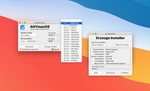
ANYmacOS provides a simple interface to download macOS versions from Lion onward
Why Use ANYmacOS?
- Versions from Lion onward: From Mac OS X Lion to the newest version the app offers
- Direct from Apple: Downloads come straight from Apple servers
- No Terminal needed: User-friendly graphical interface
- Boot stick creation: Built-in installer creation
- Free and safe: Open-source and trusted by the Mac community
Requirements
- Mac running OS X 10.10 Yosemite or later
- Internet connection for downloading
- USB stick (16GB for most older versions, 32GB for any macOS installer – Apple's figures)
- Admin password for your Mac
Step-by-Step Guide
Step 1: Download and Install ANYmacOS
- Visit the official ANYmacOS website
- Download the latest version
- Open the downloaded DMG file
- Drag ANYmacOS to your Applications folder
- If Gatekeeper blocks the first launch: up to macOS Sonoma 14, control-click (right-click) the app and select "Open"; from macOS Sequoia 15, open the app once, close the message, then go to System Settings → Privacy & Security → Security → "Open Anyway" (available for about an hour after the attempt) and enter your login password
Step 2: Select Your macOS Version
- Launch ANYmacOS
- Click the "Customer Seed" tab
- Browse available macOS versions
- Select your desired version
- Click the "Download" button
Choose from all available macOS versions
Step 3: Create the Boot Stick
- Insert your USB stick (will be erased!)
- Wait for the download to complete
- Click the "Create Installer" button
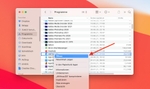
- Select your USB drive from the list
- Enter your admin password when prompted
- Wait for the process to complete (15-30 minutes)
Available macOS Versions
| macOS Version | Version Number | Available from Apple via |
|---|---|---|
| macOS 27 Golden Gate | 27.x | Software Update or Terminal – Macs with Apple silicon only |
| macOS Tahoe | 26.x | Software Update or Terminal – the last version for Intel Macs |
| macOS Sequoia | 15.x | App Store |
| macOS Sonoma | 14.x | App Store |
| macOS Ventura | 13.x | App Store |
| macOS Monterey | 12.x | App Store |
| macOS Big Sur | 11.x | App Store |
| macOS Catalina | 10.15 | App Store |
| macOS Mojave | 10.14 | App Store |
| macOS High Sierra | 10.13 | App Store |
| Older versions | 10.7-10.12 | Download file in the browser (Mavericks 10.9 is no longer on Apple's download page – via ANYmacOS) |
Using Your Boot Stick
For Intel Macs:
- Shut down your Mac
- Insert the USB boot stick
- Press and hold the Option (⌥) key
- Press the power button
- Select the USB drive from the boot menu
- Follow the installation prompts
For Apple silicon Macs (M1/M2/M3/M4/M5):
- Shut down your Mac
- Insert the USB boot stick
- Press and hold the power button
- Continue holding until you see startup options
- Select the USB drive
- Follow the installation prompts
Troubleshooting
ANYmacOS won't open
Up to macOS Sonoma 14: control-click the app and select "Open". From macOS Sequoia 15: after the first attempt to open it, go to System Settings → Privacy & Security → Security and click "Open Anyway" (available for about an hour), then enter your login password.
Download fails
- Check your internet connection
- Check that you have enough disk space
- Try a different macOS version
- Restart ANYmacOS and try again
USB creation fails
- Make sure the USB stick is properly formatted (Mac OS Extended)
- Try a different USB port
- Use Disk Utility to erase the USB stick first
- Make sure you have admin privileges
Pro Tips
- Create multiple sticks: Keep boot sticks for different macOS versions
- Label your USB sticks: Write the macOS version on each stick
- Test before need: Verify that your boot stick works before an emergency
- Keep updated: Create new sticks when new major versions are released
Alternative Methods
Terminal Method
For advanced users, you can use Terminal commands with createinstallmedia; Apple documents the command for OS X El Capitan and for every version from macOS High Sierra to macOS 27 Golden Gate (Sierra 10.12 is missing).
Internet Recovery
Intel Macs can start from macOS Recovery: Command-R reinstalls the current version of your most recently installed macOS, Option-Command-R may install the latest macOS compatible with your Mac, and Shift-Option-Command-R may install the macOS that came with your Mac or the closest version still available. A Mac with Apple silicon reinstalls the current version of the most recently installed macOS via the startup options (Options → Continue → Reinstall macOS). Recovery downloads macOS, so it requires an internet connection.
Mac App Store
Apple's download page (support.apple.com/102662) links macOS Sequoia 15 down to High Sierra 10.13 in the App Store – the download button may be greyed out, or the App Store reports that the version is not compatible with the Mac you are using – and offers Sierra 10.12, El Capitan, Yosemite, Mountain Lion and Lion as download files; Mavericks 10.9 is missing. macOS 27 Golden Gate and macOS Tahoe 26 come via Software Update, Terminal or macOS Recovery.
Frequently Asked Questions
What is ANYmacOS?
ANYmacOS is a free tool that lets you download macOS versions from Lion to the newest version the app offers directly from Apple servers and create bootable USB installers. It simplifies the process that would otherwise require Terminal commands.
Which macOS versions can I download?
You can download macOS versions from Mac OS X Lion (10.7) up to the newest version the app offers – the app shows which versions are in its list. Which version your Mac can install depends on the model: Macs with Apple silicon get macOS 27 Golden Gate, Intel Macs end at macOS Tahoe 26 at the latest.
How large should my USB stick be?
According to Apple, a 32GB USB stick is more than enough for any macOS installer, and 16GB is enough for most older versions. The USB stick will be completely erased during the process and formatted as Mac OS Extended (Journaled).